Azure Container Apps with Multiple Containers
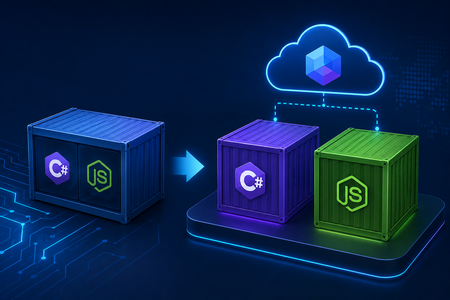
In this article, we will look at a real-world transformation of an application where a .NET Web API and Node.js initially ran inside a single Docker container and were later split into two containers within the same Azure Container App.
We will cover the following topics:
- the initial single-container architecture;
- the application transformation;
- infrastructure changes;
- communication between containers;
- the final result and changes in resource consumption.
Initial Architecture: One Container
Initially, at the infrastructure level, the application consisted of a single Docker container running two services at the same time:
- .NET Web API;
- a Node.js application responsible for Angular Server-Side Rendering.
The goal of this solution was simple: get the application running in a production environment as quickly as possible.
That goal was successfully achieved. However, once the application became stable, it was time to address the technical debt and separate the containers by responsibility.
Since the application required two processes at the same time — .NET and Node.js — a separate shell script was used to start them. This script acted as the entry point of the Docker container and launched both processes.
This approach is perfectly workable, especially during the early stages of a project. Over time, however, it becomes clear that a single container is responsible for several independent processes, while its configuration gradually becomes more complicated.
Application Transformation
Once the decision was made to split the application, it became clear that the common startup script was no longer required. Each container could now start the single process for which it was responsible.
Everything related to the Frontend and Angular SSR was moved into a separate Dockerfile. The Backend container, in turn, became responsible exclusively for the Web API.
As a result, the responsibilities became much clearer:
- Backend container — .NET Web API;
- Frontend container — Angular SSR running on Node.js.
The Web API Dockerfile now looks like this:
FROM mcr.microsoft.com/dotnet/sdk:10.0 AS build

WORKDIR /src

COPY serdg-api/ ./

RUN dotnet restore "SD/SD.csproj"

RUN dotnet publish "SD/SD.csproj" \
    --configuration Release \
    --output /out/api \
    --no-restore \
    /p:UseAppHost=false

FROM mcr.microsoft.com/dotnet/aspnet:10.0 AS runtime

WORKDIR /app

COPY --from=build /out/api ./

EXPOSE 8080

ENTRYPOINT ["dotnet", "SD.dll"]
The Frontend received its own Dockerfile. Its primary purpose is to run Angular Server-Side Rendering:
FROM node:22-bookworm-slim AS build

WORKDIR /src/ui

COPY serdg-ui/package*.json ./

RUN npm ci --legacy-peer-deps

COPY serdg-ui/ ./

RUN npm run build
RUN npm prune --omit=dev --legacy-peer-deps

FROM node:22-bookworm-slim AS runtime

WORKDIR /app/ui

ENV NODE_ENV=production
ENV PORT=4000
ENV HOST=0.0.0.0
ENV API_BASE_URL=http://127.0.0.1:8080

COPY --from=build /src/ui/dist ./dist
COPY --from=build /src/ui/node_modules ./node_modules
COPY --from=build /src/ui/package*.json ./

EXPOSE 4000

ENTRYPOINT ["node", "dist/serdg-ui/server/server.mjs"]
After these changes, the next step is to make sure that both Docker images are built correctly and successfully pushed to Azure Container Registry for further deployment.
Infrastructure Changes
Initially, I expected that splitting the Dockerfiles would represent most of the work and that the application would start working in its new configuration almost immediately.
But once again, the well-known rule proved to be true:
The first 80% of a task is not nearly as difficult as the second 80%.
While modifying the Dockerfiles took only a few hours, configuring the deployment and infrastructure required several more.
Several tasks had to be solved:
- add a second container to Azure Container App and configure the required settings for each container;
- update the Backend and Frontend so that each component handled only its own area of responsibility;
- update incoming HTTP traffic routing;
- configure communication between the Frontend and Backend containers.
One of the particularly convenient features of Azure Container Apps is the ability to run multiple containers within a single Container App.
This approach works well for components that are tightly coupled and are expected to run together.
At the same time, each container has its own configuration:
- Docker image;
- environment variables;
- CPU settings;
- memory allocation;
- startup command.
At the same time, the containers share a common lifecycle. They belong to the same Azure Container App revision, start together, and scale as a single application.
For the current project, this is completely acceptable: the Frontend has very little value without the Backend, so independent scaling of these two components is not currently required.
There is another important advantage: containers inside the same Container App share
the same network environment and can communicate with each other through localhost.
This is why the Frontend container can access the API using:
ENV API_BASE_URL=http://127.0.0.1:8080The Backend does not need to be exposed externally.
Changing the Backend Responsibilities
After splitting the containers, the responsibilities of the applications themselves also changed.
Previously, the .NET application not only provided the API but also participated in serving the Frontend.
For example, the following fallback was used:
app.MapFallbackToFile("index.html");Once the Frontend moved into its own container, this logic was no longer required.
The Backend now becomes exactly what it is supposed to be: a Backend. Its responsibilities are providing the API, working with data, serving backend resources, and handling the rest of the server-side logic.
This is probably one of the main benefits of the refactoring: each component is now responsible only for its own area.
Frontend as the Single Entry Point
After the containers were separated, all external HTTP requests started arriving at the Node.js application first.
The Frontend container is now the entry point for Azure Container Apps ingress.
Regular user requests are handled by Angular SSR. Requests to the API and certain server-side resources, however, must be forwarded to the second container.
This required a small update to server.ts.
The list of routes that should be proxied to the Backend looks like this:
const proxiedRequestPaths = [
  '/api',
  '/documents',
  '/images',
  '/mnt',
];

/**
 * Proxy API-related requests to the API container.
 */
for (const requestPath of proxiedRequestPaths) {
  app.use(requestPath, proxyToApi);
}
The resulting request flow now looks approximately like this:
Internet
   │
   ▼
Azure Container Apps Ingress
   │
   ▼
Node.js / Angular SSR :4000
   │
   ├── Angular pages
   │
   └── /api, /documents, /images, /mnt
           │
           ▼
      .NET Web API :8080
As a result, external ingress is required only for the Frontend container.
The Backend container is available to the Frontend through the internal network of the Azure Container App and is not exposed directly to the internet.
Result
After the refactoring, the architecture became noticeably cleaner.
Instead of one container running two independent processes, there are now two containers with clearly defined responsibilities:
Azure Container App
│
├── Frontend container
│   └── Node.js + Angular SSR :4000
│
└── Backend container
    └── .NET Web API :8080
This made it possible to remove the auxiliary script that started both processes, simplify the Dockerfiles, and make the overall application architecture much clearer.
At the same time, both containers still remain part of the same Azure Container App and can communicate closely with each other, which fits the requirements of the current project well.
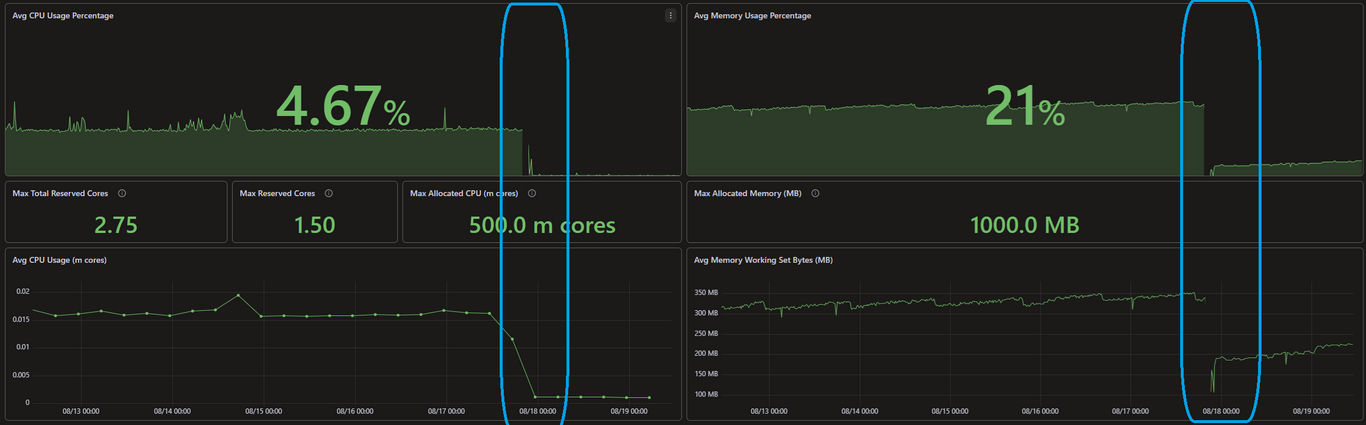
In addition to the architectural improvements, the refactoring also produced a practical benefit: memory and CPU consumption decreased noticeably. The difference in resource usage can be clearly seen in the screenshot below.
Perhaps just as importantly, the architecture now reflects the actual responsibilities of the individual components much better.
And, of course, there is one more benefit that comes with any successfully completed refactoring: the satisfaction of knowing that there is now a little less technical debt in the project.